Dashboards
EPASS Reports dashboards provide a centralized, visual interface for monitoring key metrics and analyzing data trends. They transform complex datasets into clear, actionable insights, enabling your teams to make informed decisions quickly.
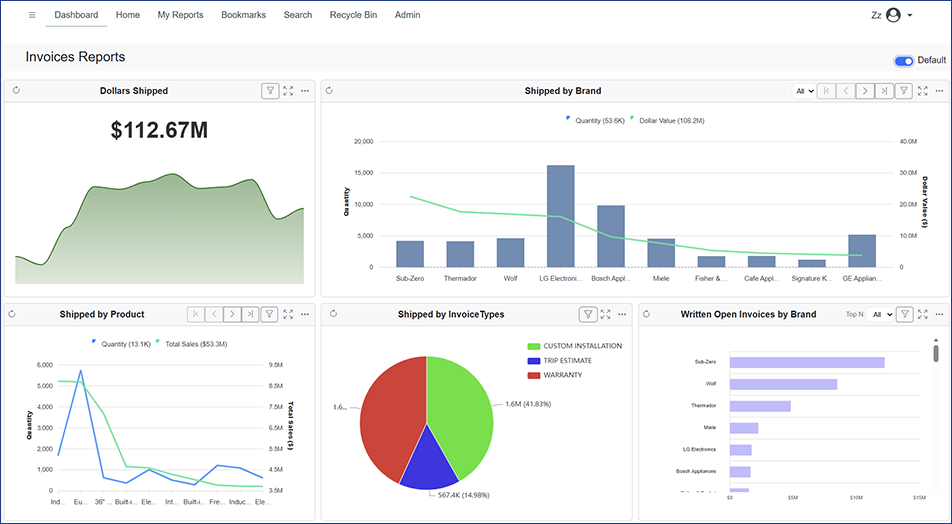
EPASS Reports makes it easy to build custom dashboards with a large library of data widgets combined with an intuitive drag-and-drop interface. By adding, removing, and configuring widgets, you can create customized dashboards for each of your team members or for entire departments.
Follow the links below for instructions on building custom dashboards using the built-in editor and widgets.
Configuring Custom Dashboards
The custom dashboards feature is part of the 3.0.0.2 update. If your EPASS Reports installation has been updated to this version or later, then the custom dashboard feature is ready for set up. Follow the steps in this guide before first time use.
Creating a Custom Dashboard
These instructions guide you through the complete process of creating a custom dashboard in EPASS Reports. You can build multiple dashboards and assign them to specific EPASS Users or Groups, ensuring that only authorized members have access. Additionally, you can set a default dashboard that automatically loads when a user logs into EPASS Reports, providing a personalized and streamlined experience.
Widgets
Creating a dashboard involves adding and positioning multiple "widgets." Widgets are modular components that display specific reporting data in a visual format, such as charts, tables, gauges, or text summaries. By adding and arranging widgets you can create unique EPASS Reporting dashboards for each of your different teams and staff members.
Managing Dashboard Security
Managing dashboard security in EPASS ensures that only authorized Users or Groups can create, modify, or access custom dashboards and widget groups. Through the User Security settings, administrators can grant specific permissions such as creating dashboards, assigning them to others, or editing and deleting dashboards created by different Users. In addition to managing editing rights, you can also control which Widget groups a User can access when building dashboards, helping maintain consistency and data management.
Viewing Dashboards
When a User logs into EPASS Reports, they'll be able to view all the dashboards that they have been assigned to. All dashboards that a User can view are listed in the left navigation. To view a dashboard, expand the Dashboards section, and then click the dashboard name to load it.
Troubleshooting Dashboards
If something isn’t working as expected, this topic walks you through common causes and solutions to get things back on track.